This section walks you through the main system components available after installing Kitu Kizuri. The goal is to help you understand the administrative interface and core features that are ready to use, providing clarity on how the system is structured before you begin extending or customizing it to fit your specific requirements.
System Overview
This section walks you through the main system components available after installing Kitu Kizuri. The goal is to help you understand the administrative interface and core features that are ready to use, providing clarity on how the system is structured before you begin extending or customizing it to fit your specific requirements.
Control Panel
Quick Access- Route:
/krud
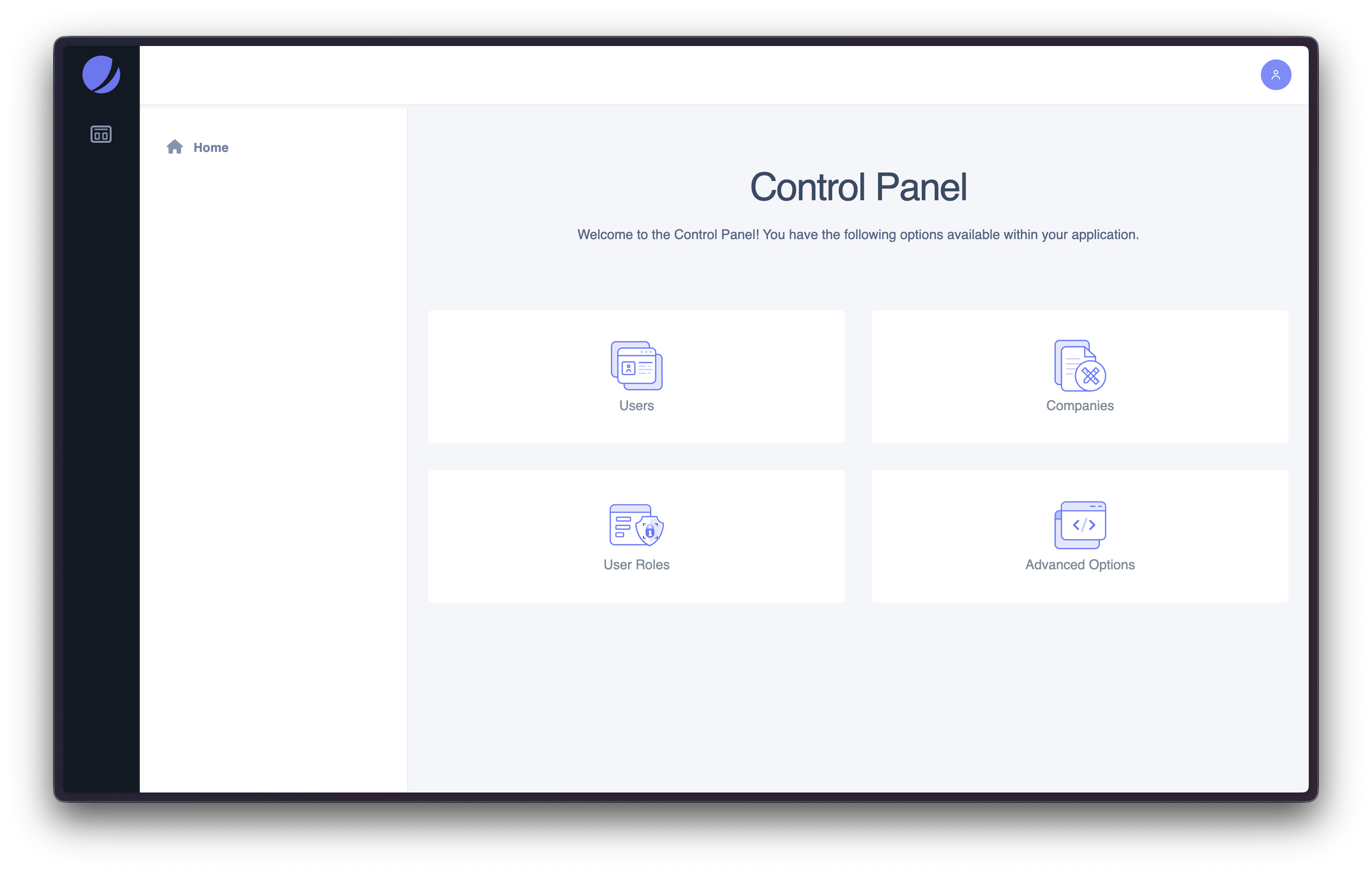
The Control Panel acts as the main entry point for all administrative activities within the application. It provides a high-level view of the most important management areas and serves as the starting point for configuring and maintaining the system.
From this screen, administrators can access core sections such as user management, role configuration, company setup, and advanced system options. The card-based layout is designed to make navigation intuitive, allowing users to quickly identify available actions without needing to know specific routes or internal system details.
What you can do here- Access core administrative sections from a single location
- Navigate to user, role, and company management
- Enter the Advanced Options area for system-level configuration
- Understand the overall structure of the administrative interface
- Requires access to the Control Panel module
- Availability depends on the permissions assigned to the current role
- Visible options may be limited by company-level configuration
For detailed explanations of each section, available actions, and access rules, refer to: Control Panel (Full Guide) →
User Management
Quick Access- Route:
/krud/usuarios
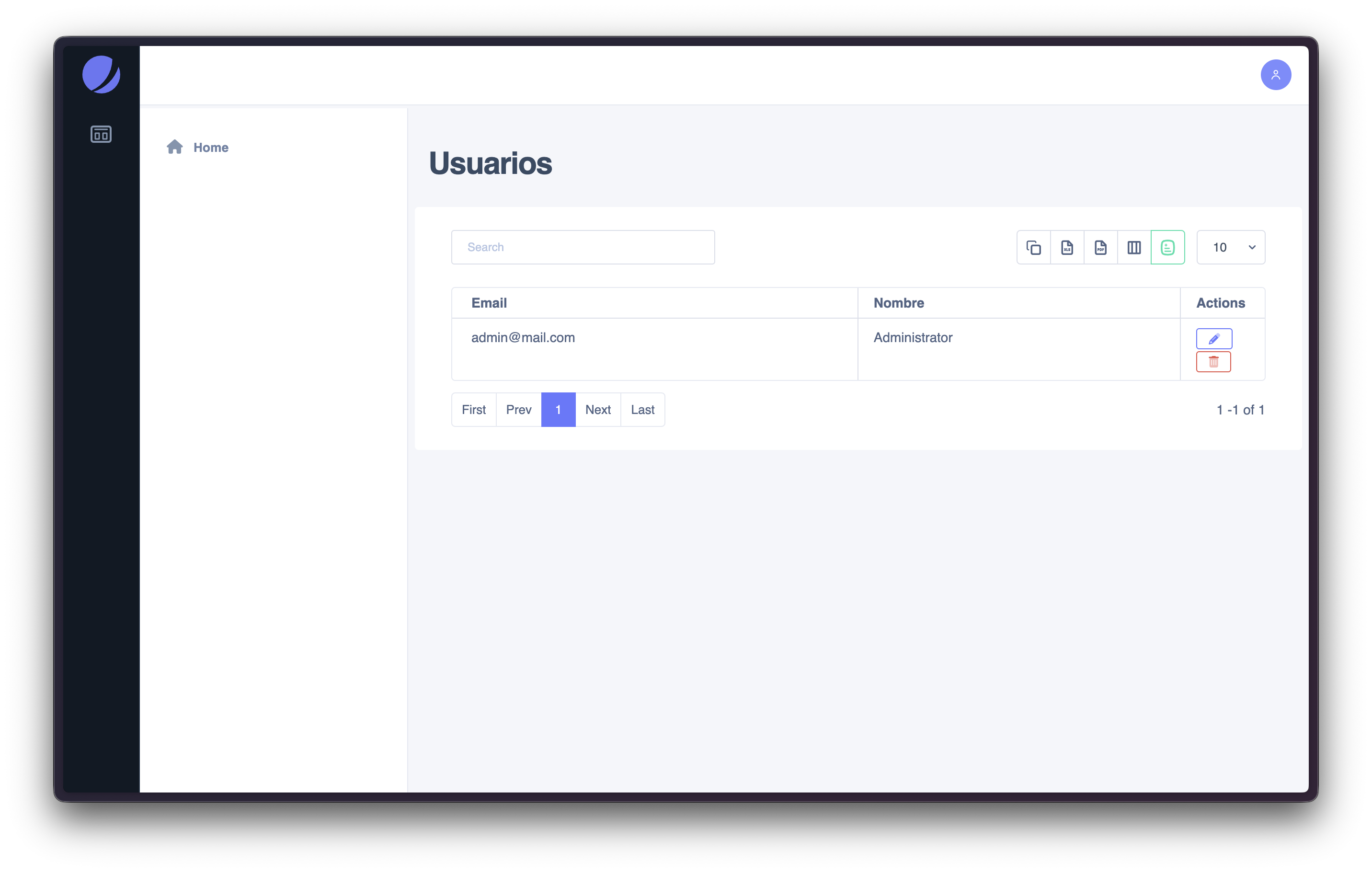
The User Management section provides a centralized view of all user accounts registered in the system. From this screen, administrators can quickly review users, search by name or email, and access common management actions directly from the list.
This section is focused on day-to-day user administration and visibility. It intentionally presents a simplified view of user data, while more advanced configuration such as role assignment and permission rules is handled in dedicated sections.
What you can do here- View the list of registered users
- Search users by name or email
- Access basic administrative actions from the user table
- Navigate through paginated results
For detailed workflows, permissions, and advanced user-related actions, refer to: User Management (Full Guide) →
Role and Permission Management
Quick Access- Route:
/krud/roles
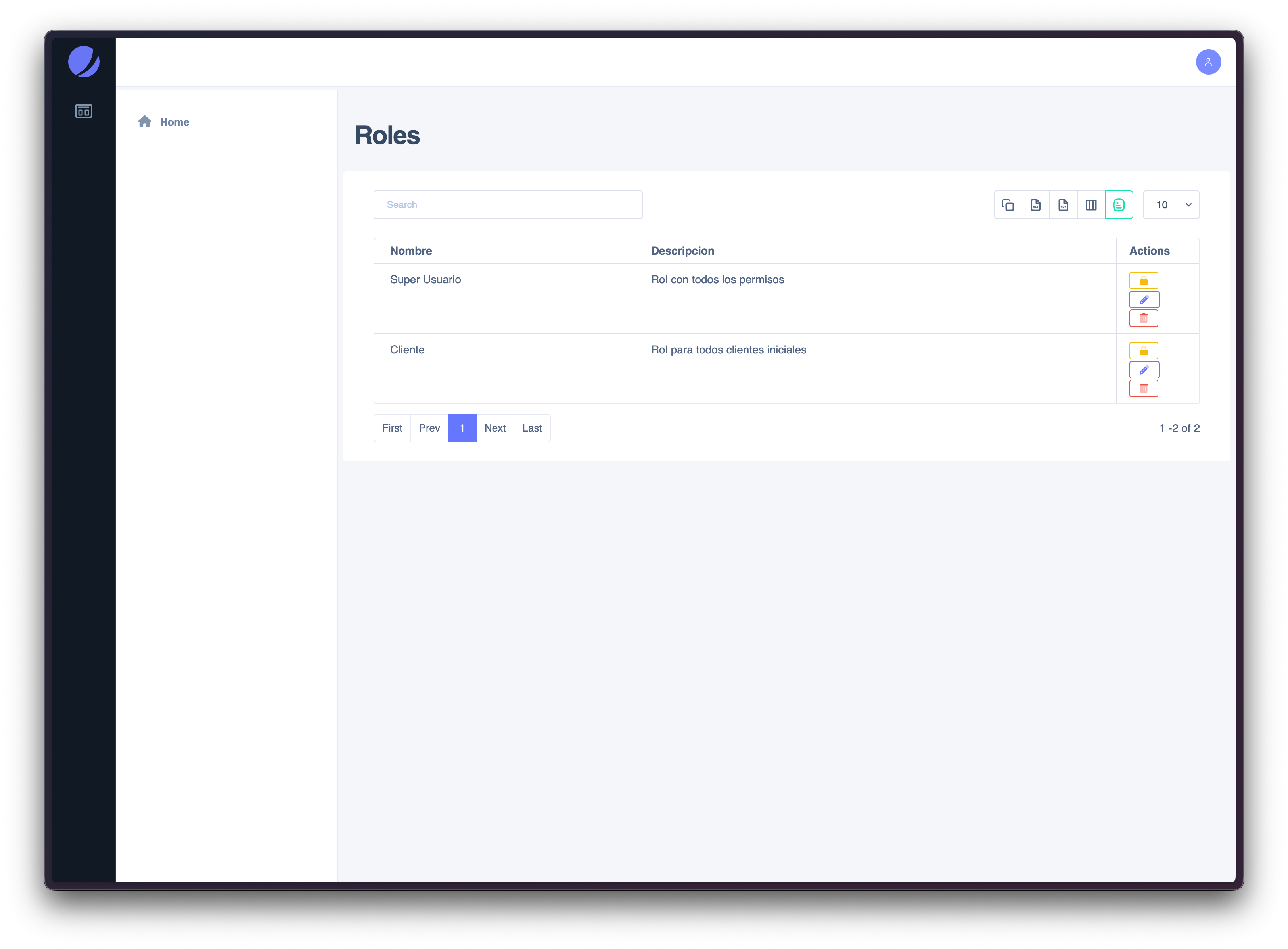
The Role Management section allows administrators to define and manage the roles available within the system. Roles act as permission containers that determine what actions users can perform across different modules.
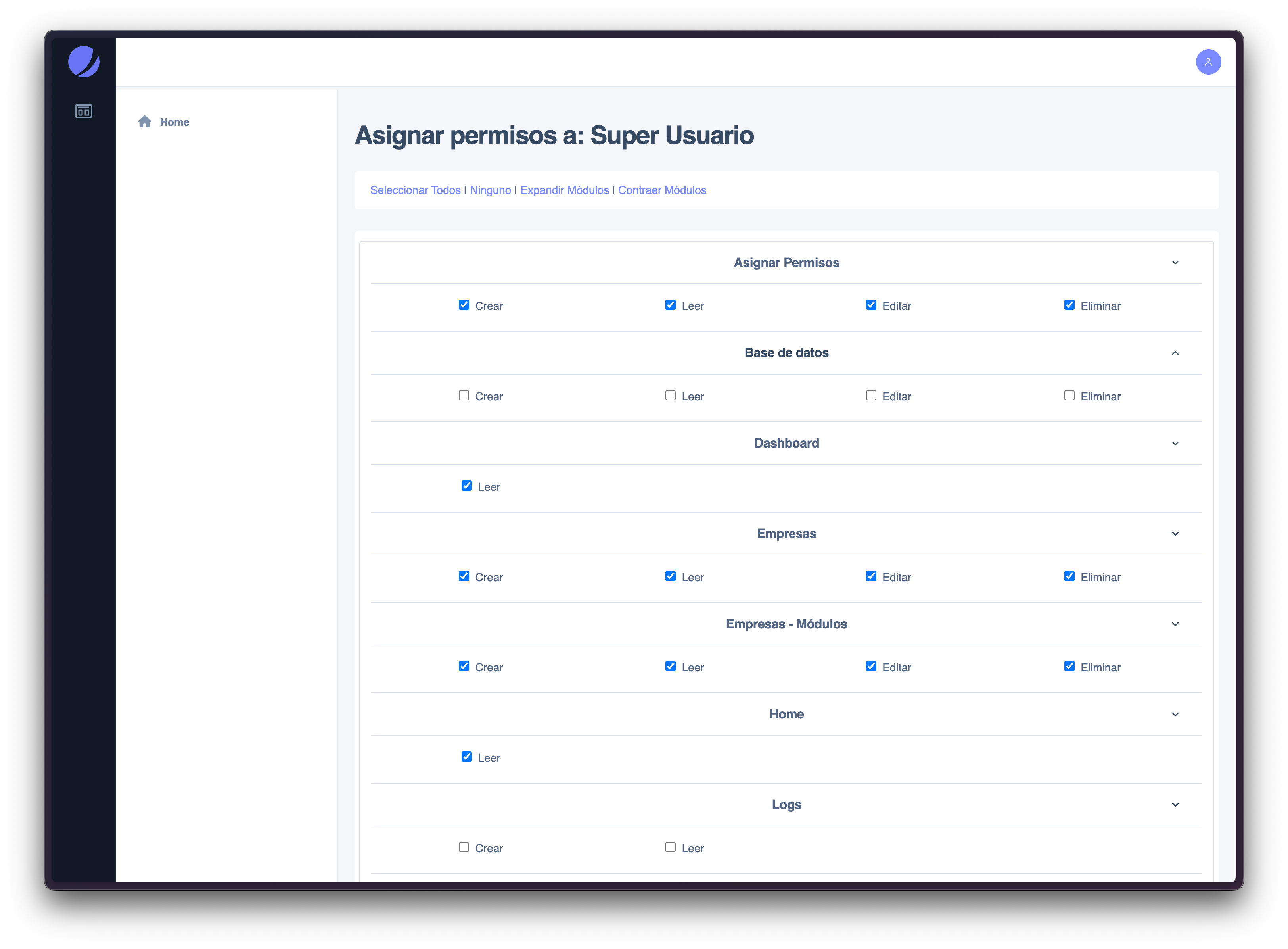
From this screen, administrators can view the list of existing roles, create new ones, and manage their associated permissions. The role creation process is intentionally simple, separating basic role information from permission assignment to keep configuration clear and controlled.
How it works- A role is created by providing a name and description
- Once the role is created, the option to assign permissions becomes available
- Permissions are organized by modules and actions, allowing granular control
- Changes take effect immediately for users assigned to that role
- View all available roles in the system
- Create new roles with descriptive metadata
- Edit existing role information
- Assign or update permissions per role
- Remove roles when they are no longer needed
For detailed information about role creation, permission assignment, and best practices, refer to: Role Management (Full Guide) →
Company Management
Quick Access- Route:
/krud/empresas
The Company Management section allows administrators to define and manage the companies that operate within the system. A company represents an isolated operational context where users, roles, modules, and data are applied.
This section follows a two-step configuration model: first, the company is created using standard identification data; once created, additional options such as module assignment and branch (sucursal) management become available.
How it works- A company is created by entering basic information (name, tax ID, contact details, etc.)
-
After creation, advanced options are enabled:
- Module assignment to control which features the company can access
- Branch (Sucursal) management to organize company structure
- Changes affect all users operating under that company context
- View all registered companies
- Create new companies with standard information
- Enable or disable modules per company
- Manage company branches (sucursales)
- Edit or remove companies when necessary
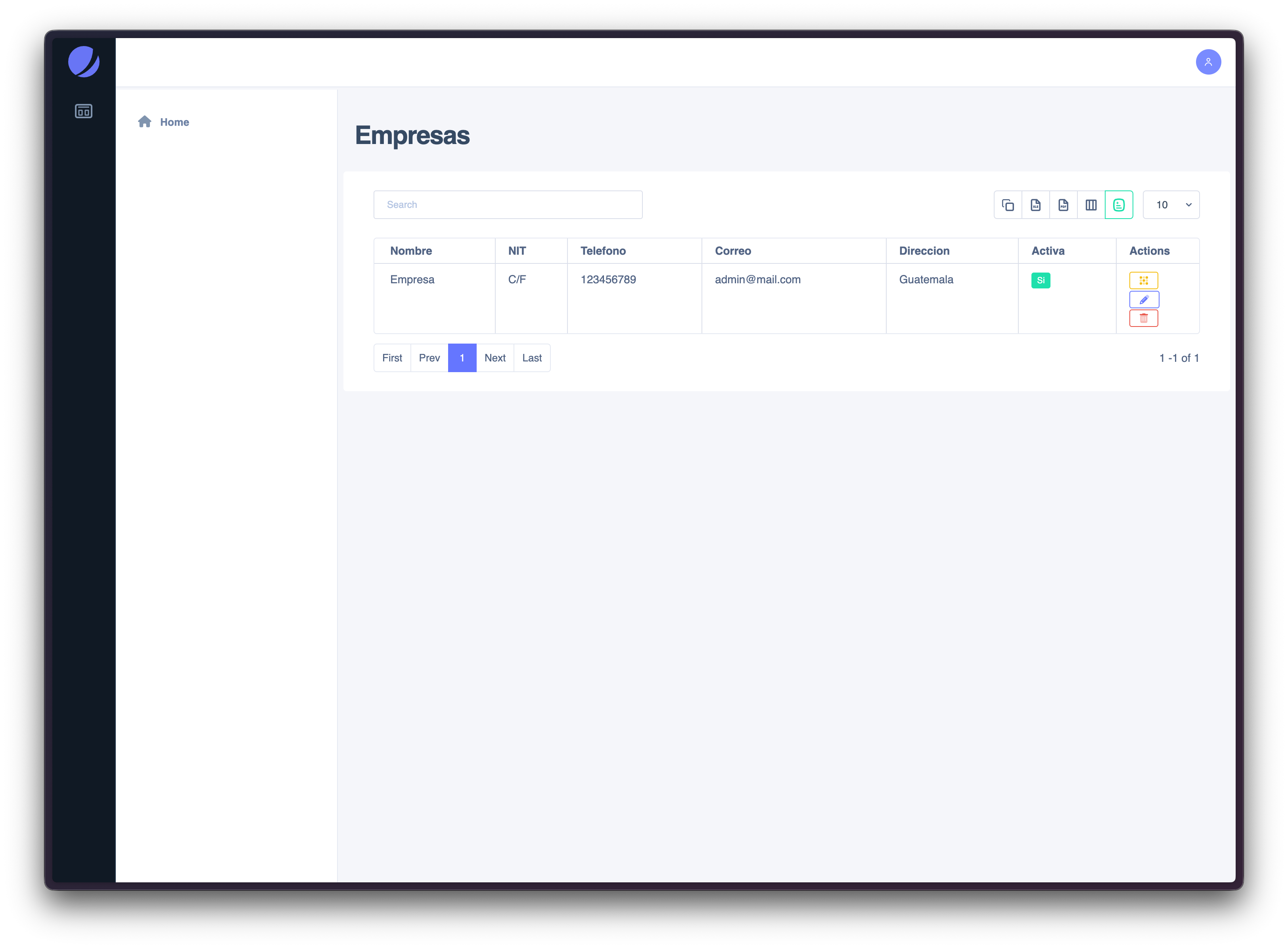
For detailed information about company setup, module assignment, and branch management, refer to: Company Management (Full Guide) →
Advanced Options
Quick Access- Entry point:
/krud→ Advanced Options
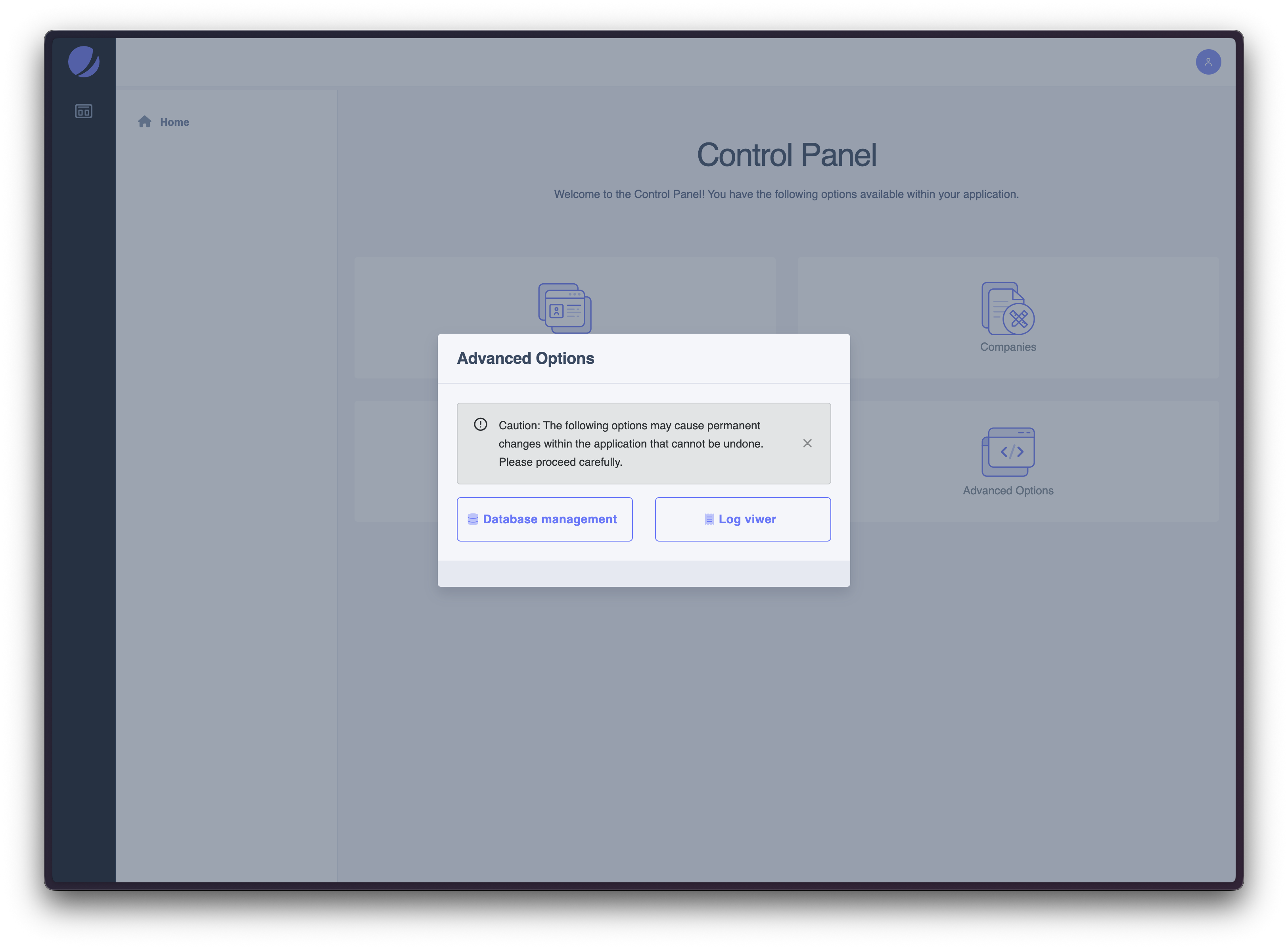
Advanced Options provides access to system-level tools through a controlled modal interface rather than a standalone page. This helps prevent accidental navigation and clearly separates sensitive actions from day-to-day administration screens.
When selected from the Control Panel, a modal dialog is displayed with a warning message and a limited set of advanced utilities. These options are intended for maintenance and troubleshooting and may cause permanent changes within the application.
How it works- Advanced Options is opened from the Control Panel
- A modal dialog is displayed with a caution message
- From the modal, administrators can access:
- Database management
- Log viewer
- No navigation occurs until an option is explicitly selected
- Access advanced system utilities
- Open database tools intended for administrators
- Inspect application logs for troubleshooting
For detailed information about each tool and safety considerations, refer to: Advanced Options (Full Guide) →