Role Management allows administrators to define what users can do inside the application. A role acts as a permission container: users inherit access rules based on the role assigned to them.
Role Management
Role Management allows administrators to define what users can do inside the application. A role acts as a permission container: users inherit access rules based on the role assigned to them.
Overview
Role Management allows administrators to define what users can do inside the application. A role acts as a permission container: users inherit access rules based on the role assigned to them.
This module separates role creation from permission assignment to keep configuration simple and predictable: first you create the role metadata (name and description), then you assign permissions in a dedicated screen.
Role List
The Roles screen displays a table with all roles configured in the system. Each row represents a role and typically includes:
- Name
- Description
- Actions (commonly: assign permissions, edit, delete)
This view is designed to help administrators quickly identify existing roles and access the configuration actions without leaving the list.
Reference Screenshot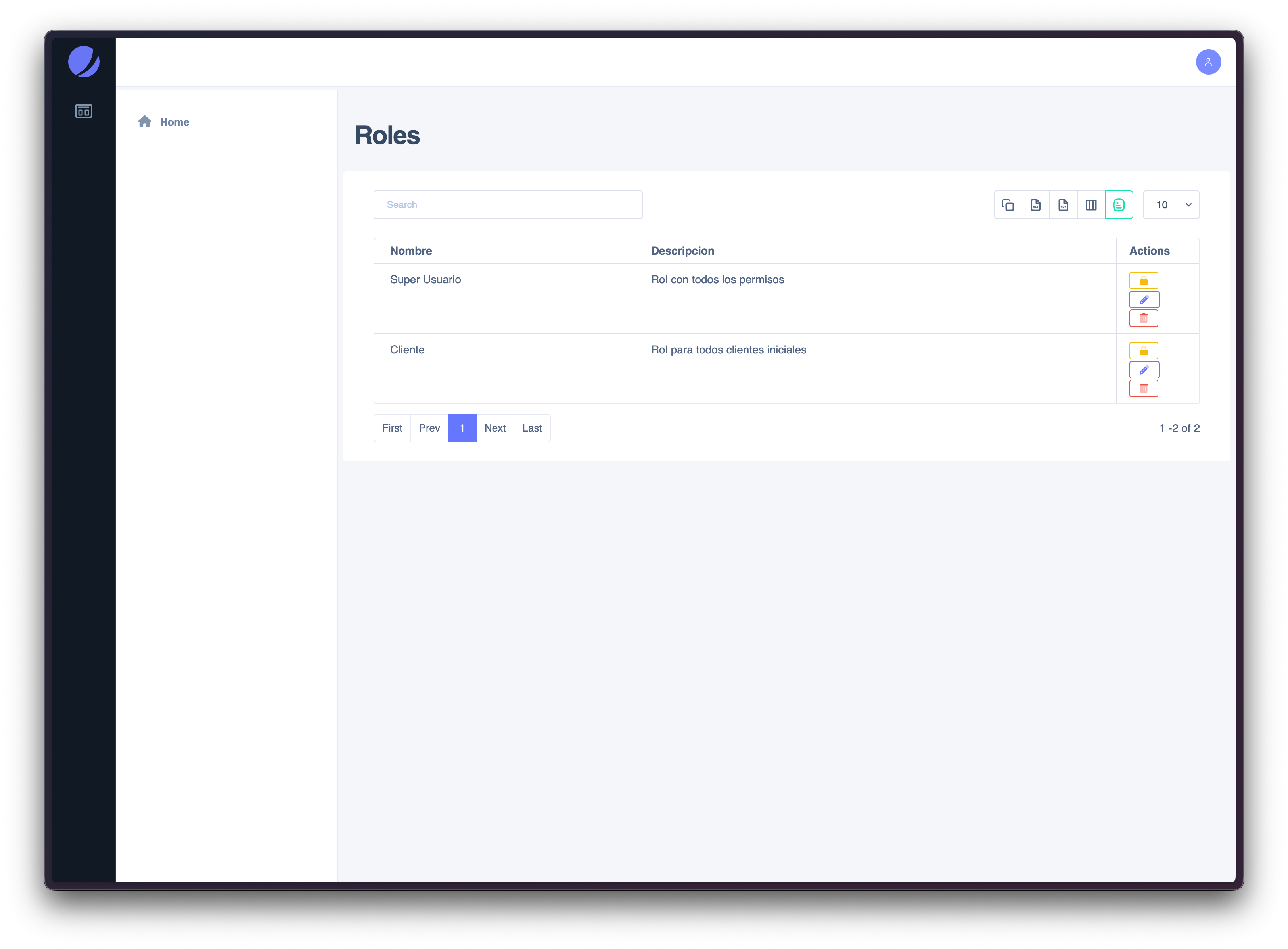
Creating a Role
Creating a role is a lightweight process focused on metadata:
- Click Create role
-
Enter:
- Name (required)
- Description (recommended)
- Save
After saving, the system enables the option to assign permissions to the newly created role.
Recommended practice- Use clear, functional names (e.g., Accounting, Support, Read-only)
- Keep descriptions short and explicit (what the role is meant to do)
Assigning Permissions
Once a role exists, you can open the Assign permissions screen. Permissions are organized by:
- Modules (collapsible sections)
- Actions (commonly: Create / Read / Edit / Delete)
This layout helps keep permission configuration scalable as the system grows.
Reference Screenshot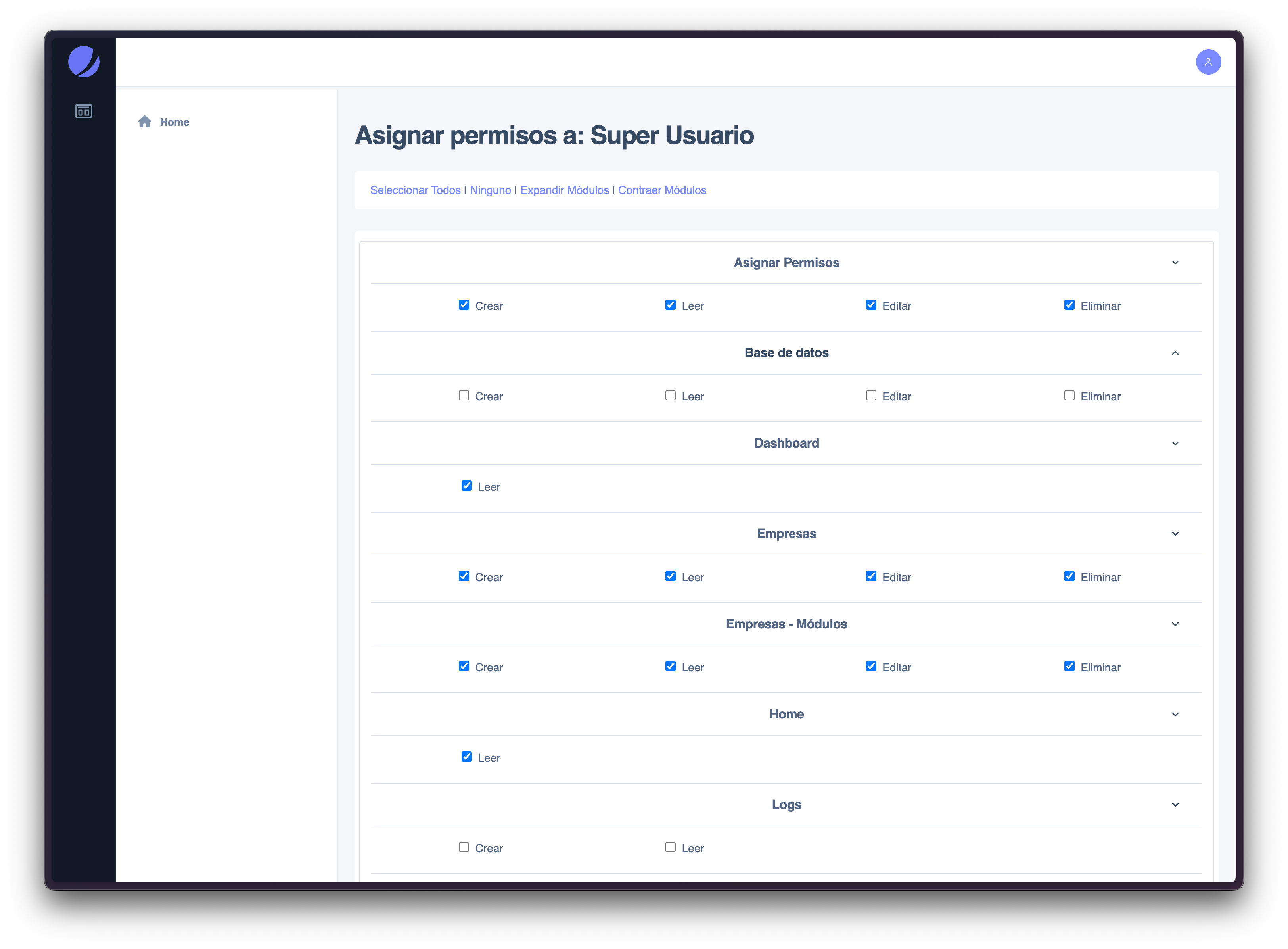
Bulk Selection Tools
The permissions screen includes quick controls to speed up administration:
- Select all / None Applies changes across the entire permission set
- Expand modules / Collapse modules Helps review and edit permissions efficiently in large configurations
These tools are especially useful when creating roles from scratch or when performing audits.
Understanding Permission Scope
Role permissions control access at the capability level, but visibility and access can still be affected by:
- Company-level module configuration (some modules may be disabled)
- System rules (some actions may be restricted)
- UI conditions (only showing options when allowed)
Because of this, granting a permission does not guarantee a menu item will appear if the module is not enabled.
Editing and Deleting Roles
Edit roleUse this to update the role’s name or description. Renaming roles should be done carefully to avoid confusion across teams.
Delete roleUse this to remove roles that are no longer needed. Deleting a role can impact users currently assigned to it.
Recommended practice- Avoid deleting roles that are currently in use
- Prefer creating a replacement role and migrating users first (when applicable)
Common Scenarios
- Create a role for a new department and assign only relevant modules
- Build a read-only role by enabling only “Read” permissions
- Audit access by reviewing permissions module-by-module
- Restrict admin access by removing “Delete” from sensitive modules
Permissions
To access Role Management:
- Requires the Role Management module to be enabled
- Requires the appropriate permission assigned to the active role
- Visibility may be restricted by company-level configuration